
One Course
Every lesson, project and mock exam in Excel.
$17.99/ month
Billed monthly. Cancel any time.
Or $54.99 a year, save 75%
Level 1: Newcomer
0 points
Sign in to save your progress across devices.
Courses / Data and analytics tools
Practice Excel in an independent simulator in your browser. You don't need a company account, a license or anything installed.
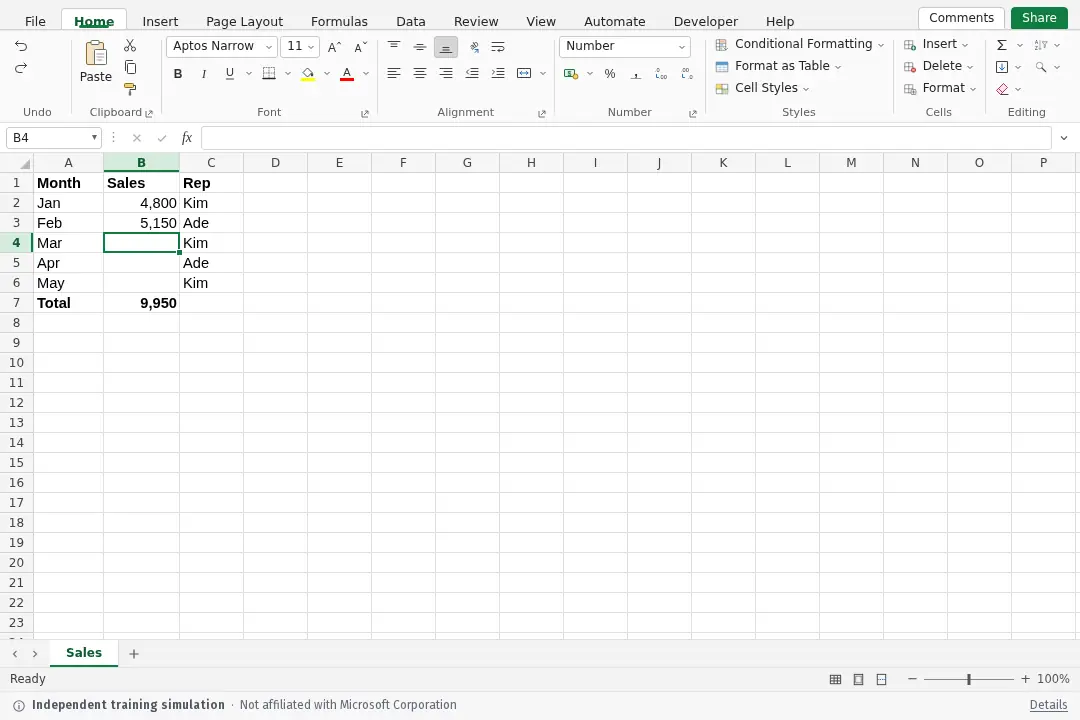
Learn Excel by doing it. Each lesson is a short tutorial with a worked example, then practice exercises in a working spreadsheet, checked as you finish. Start as a beginner with your first formula and work up to XLOOKUP, PivotTables and timed practice tests.
Free resources:StatisticsExcel formulas cheat sheetRetail sales datasetCommon Excel mistakes beginners make (study)Excel test for a job interviewAll free resources
Took a video course? Practice it here, with every exercise checked. How we compare with Udemy
Courses / Data and analytics tools
Two quick questions, then your plan and your first lesson.
Question 1 of 2
Question 2 of 2
Your plan
Start with unit 1, Formula basics: 7 lessons and 37 checked exercises, free.
At 10 minutes a day, you finish unit 1 in about 6 days.
At 20 minutes a day, you finish unit 1 in about 3 days.
At a few hours a week, you finish unit 1 within a week.
Yes. You practice in an independent simulator built by The Work Gym, with fictional company data, so you don't need an employer account or a license. It is not the official Microsoft Excel application.
The first unit, Formula basics, is free and needs no account: 7 lessons and 37 checked exercises. The whole course is in the One Course plan, $17.99 a month at the full US dollar price, and in All Access. Many countries pay less.
Only a browser. Every exercise runs on The Work Gym and is checked as you finish it, so there is nothing to install or set up.
Yes. It runs in the browser on a Mac, in Safari or Chrome, and on a phone. On a phone, parts of the practice area are wider than the screen and scroll sideways, so a bigger screen is more comfortable.
180 lessons and 985 checked exercises, about 34 hours of practice in all.
It prepares you for Excel assessments, MO-200, and it includes 4 timed mock exams.
SUM, IF, SUMIFS and COUNTIFS, and fix a total that comes out wrongVLOOKUP, XLOOKUP and INDEX with MATCH, and decide what happens when there's no match$ and F4 so a formula copies down and across without breakingFILTER, UNIQUE, SORT, LET and LAMBDA in current ExcelUnit 1, Formula basics: 7 lessons and 37 checked exercises, with no account or card.
Start the free unitThe rest of the course opens with a One Course or All Access plan. See plans and prices
Choose access here. Your course is already selected.
Full price in US dollars.
Turn a raw order list into the monthly report a sales manager asks for, one formula at a time.
8 steps · 25 minProject · IntermediateWeekly timesheet and overtime payWork out regular and overtime hours, look up pay rates and total a week of payroll.
8 steps · 20 minCase study · IntermediateCarrier on-time performanceCompare three carriers on on-time rate and lateness, and name the most reliable one.
7 steps · 18 minProject · IntermediateA grade bookTurn a table of quiz and exam scores into averages, letter grades, ranks and a class summary.
7 steps · 18 minProject · IntermediateBudget versus actualCompare a department's spending with its budget, flag the overspends and name the biggest one.
8 steps · 16 minCase study · IntermediateReturns by marketing channelWork out the standard marketing metrics for twelve campaigns and find the channel with the best return.
7 steps · 18 minCase study · AdvancedA rental property portfolioRank eight rental properties by cap rate and cash flow, and find the one to review first.
8 steps · 25 minCase study · AdvancedClinic no-showsFind which clinic and which weekday lose the most appointments to no-shows.
7 steps · 20 minCase study · AdvancedStaff turnoverWork out who left, how long people stayed and which department loses the most staff.
7 steps · 20 minProject · AdvancedA stock reorder sheetWork out which café supplies to reorder, how much, and from whom, with a list that updates itself.
7 steps · 20 minCase study · AdvancedA pricing decisionCompare three contract options for Linden Printworks.
6 steps · 18 minCase study · AdvancedA staffing scheduleCompare fictional training schedules for the Westhaven simulation ward.
6 steps · 18 minCase study · AdvancedWhich store to expandCompare four fictional locations for Fern Retail.
6 steps · 18 minProject · AdvancedA loan comparison calculatorBuild a borrowing comparison for Quarry Workshop.
6 steps · 18 minProject · AdvancedClean an HR exportPrepare a clean staffing list for Solace Field Services.
6 steps · 18 minProject · ExpertAutomate the month-end orders workbookBuild one Office Script that fills amounts, builds a region summary with a live total, highlights large orders, logs the run and returns the total for a flow.
6 steps · 45 minProject · ExpertA sales dashboardBuild an operational dashboard for North Pier Supplies.
7 steps · 22 minProject · ExpertA dependency schedulePlan a fictional archive migration for Orchard Studio.
15 steps · 46 minCase study · ExpertSubscriber retentionCompare fictional subscription cohorts for Larch Learning.
6 steps · 18 minMock exam · ExpertCore skills (MO-200 style)Ten timed tasks in the style of the Excel Associate exam: views, sorting, filtering, names, number formats and formulas.
10 questions · 25 minMock exam · ExpertMO-200 style task set 2Work through twelve timed tasks on support tickets. Calculate workloads and queue lookups, extract text and dates, count missing owners and subtotal visible hours.
12 questions · 30 minMock exam · ExpertAdvanced formulas (MO-201 style)Eight timed tasks in the style of the Excel Expert exam: XLOOKUP, SUMIFS, IFS, FILTER, SORT and UNIQUE, LET and PMT.
8 questions · 22 minMock exam · ExpertMO-201 style task set 2Analyze a support team’s workload in twelve timed tasks. Handle overlapping groups, dynamic lists, tied ranks, running totals and reopened-ticket hours.
12 questions · 30 minEach lesson teaches one skill and gives you three to five exercises in a working spreadsheet with the ribbon, formula bar and shortcuts you'll use at work. The first exercise walks you through the steps; the next ones take the steps away, change the data and end with a task like the ones in job tests and real reports. Any correct formula counts, and a wrong one gets a message about what probably went wrong. You'll start with formulas and SUM, then work through IF, SUMIF and COUNTIF, VLOOKUP, XLOOKUP, INDEX and MATCH, absolute references and the shortcuts that save the most time.
Work one company brief through several tools. Your Excel stage reads the tables from the stage before.
Explain what you've learned in a full-screen interview. Speak or type, then review your answers against the rubric for your level.
Interview loops by jobBeginner
Enter data, write formulas, add up and average ranges, count, and fix totals that come out wrong.
Move, select, copy and paste with the keyboard instead of the mouse.
Fill formulas and series, lock references with $, and work across sheets.
Number formats, bold and shaded headers, borders, alignment and wrapped text.
Comparisons, IF, AND, OR, XOR, NOT, IFS, SWITCH and the IS functions.
Intermediate
Round, rank and summarize values, then count and total the rows that match.
Find values in tables with VLOOKUP, HLOOKUP, XLOOKUP, and INDEX with MATCH.
Take text apart, tidy it and put it back together: LEFT, MID, FIND, SUBSTITUTE, TRIM, TEXTJOIN and TEXT.
Build, take apart and calculate with dates: days, working days, months, weekdays and today.
Sort, filter, validate and clean lists, then build expanding tables with structured references.
Enter, format, insert, paste, total, find and reach the ribbon with the keys analysts use every day, on Windows and Mac.
Apply conditional formatting and build linked charts, sparklines and Gantt views.
Build complete reports from raw lists, one step at a time: sales, payroll, deliveries, grades, budgets and campaigns.
Summarize lists, change value calculations, group and filter fields, and build calculated fields.
Review scripted suggestions and complete checked work in the existing tool.
Advanced
Build spilling results, name ranges and calculations, and write reusable functions.
Calculate loans and returns, then compare scenarios and test changing inputs.
Prepare repeatable imports, build decision models, inspect formulas and protect workbooks.
Expert
Record, read and fix macros, write worksheet functions, and prepare printed reports.
Automate a growing company workbook with VBA that finds its own last row and loops sheets, and with Office Scripts in TypeScript.
Build changing ranges, tied rankings, linked dashboards and schedules.
Classic interview tasks and timed mock exams, followed by an untimed review.
Practice control logic in the PLC programming course, using a ladder editor and a Structured Text teaching subset with visible input and output traces.
A worksheet can supply the recipient data for a letter batch. Use the Word mail merge practice to check field names and recipient selection, then prepare a structured report in the Word course.
When a chart from your workbook goes into a monthly deck, the PowerPoint training shows how to link it to an Excel range so it refreshes with the numbers, and how to give it a title that states the finding.
Use the US payroll course to reconcile pay and deductions, then analyze headcount, recruiting and pay bands in HR analytics. The payroll tasks state the 2026 US model; the analytics course uses fictional people data.
Spreadsheet checks also support work in business systems. Reconcile a workforce population in Workday HCM, compare competing bookings in resource planning or follow purchasing and asset records in SAP. The accounting course connects source totals to close workpapers. Check ledger accounts, department dimensions and report dates in Business Central when the worksheet supports an accounting handoff.
When a spreadsheet handoff becomes a workflow, practice Power Automate, Salesforce administration and Flow or ServiceNow service operations. Each course uses a modeled workspace with fictional data. These exercises don’t connect your spreadsheet to a company’s systems.
For database reports, practice SQL query optimization: read the plan and preserve the result as you rewrite the query. The SQL cheat sheet covers the query syntax.
When your next task is to store worksheet records in a database, practice PostgreSQL. Define keys and constraints, then query the rows to check that the data still reconciles.
If your data starts as application events, practice Apache Kafka to trace record keys, partition order and consumer offsets before you analyze the resulting table.
For a workbook that receives ERP data, use NetSuite practice to check transaction grain, subsidiary and source records before trusting an exported total.
When a reconciliation workbook uses exported accounting records, check the source first. The Xero course separates imported bank lines, posted payments and reconciliation links.
Practice working with coding agents to scope a change, review the proposed code and check its tests in a scripted workspace.
If a reporting workflow adds model-generated text, practice evaluation cases for model applications. Keep fixed test records separate from the examples used to change the prompt; the notebook uses fictional data and prepared replies.
If a spreadsheet report is moving into application code, practice C# LINQ and report tests. The .NET interview questions explain deferred queries, duplicate keys and the checks that preserve a report’s totals.
If spreadsheet records need a data-entry app, practice Power Apps. Build a gallery and form, then check saved source records separately from unsaved edits.
Use the consulting sector cases to turn a checked worksheet into a recommendation. Compare the margin on a retail promotion, the staffing limit in healthcare and the cost per completed public service. The market sizing examples show how to keep quantities separate from revenue. Before comparing support totals in a workbook, define the original ticket cohort in Zendesk reporting practice. A created-ticket population and a solved-ticket population answer different questions.
If an application includes a reasoning test, practice reading tables without changing the question’s denominator. The aptitude course adds timed employer scenarios; the worked questions explain the difference between missing evidence and a wrong calculation.
To see how this course compares with other places to learn Excel, read the best websites to learn Excel interactively.
Practice the request, the source check and the permission decision before using an assistant with work data.
Claude at work · Microsoft 365 Copilot
The assistant unit adds 20 exercises across four lessons. Compare prepared suggestions about formulas, conditional totals and missing values with the task and its data. Choose whether to accept, repair or reject each suggestion, then complete the work in the same practice workspace. The usual tool checker evaluates the result; the review decision has its own check. A correct review alone does not finish the task.
The practice has a limit: it can’t answer new questions beyond the prepared exercises.
Replies are scripted locally. The practice does not call a live model, upload your files or change a vendor account. Real product access depends on the available feature and your organization’s permissions.
The product reference for this practice is Copilot in Excel. Check the linked product documentation in the exercise before applying a method to a live system.
Import a CSV in the Excel playground, name your project, and reopen it in the same browser. Download a backup of work you need to keep. Files stay in the browser and do not sync to your account.
Complete every course exercise, then sign in and open Results for your practice record. Download the PDF or, after choosing a display name and making the record public, add it to LinkedIn. The record discloses help used. It does not verify identity or award a professional qualification. The free first unit alone does not earn a course record.
No. The exercises run in our own spreadsheet in your browser, built to work like Excel, with the ribbon, the formula bar and the usual shortcuts. It isn't Microsoft's software, and The Work Gym isn't affiliated with Microsoft.
The first unit is free and needs no account. The rest of the course opens with a One Course or All Access plan, and the pricing page shows every plan and its price.
Current Excel for Microsoft 365, so it includes newer functions such as XLOOKUP, FILTER and LAMBDA. If your workplace runs an older version, VLOOKUP, INDEX with MATCH, SUMIFS and PivotTables each have their own lessons.
By what ends up in the cells, so any correct formula counts, not only the one in the answer. A wrong answer gets a message about what probably went wrong, such as a reference that moved when you copied the formula.
Each exercise has hints that start with a nudge and end close to the answer, and Show answer fills in the solution so you can see how it works.
That's what the last unit is for: interview sets, then mock exams on a clock in the style of MO-200 and MO-201. They use our own questions, not Microsoft's, and passing one isn't a Microsoft certification.
Yes. Shortcut lessons show and accept the Mac keys as well as the Windows ones.
About 34 hours if you do every lesson once. A lesson takes 6 to 13 minutes, so one fits in a coffee break.
Sign in, and each project, case study and mock exam you finish gives you a record of what you did and when, with a code anyone can use to check it. Finish every exercise in the course and you get a course record as well.
Yes. Use the financial markets course to read fictional quotes, yields and portfolio positions. The AML and KYC course covers customer evidence, transaction alerts and payment reconciliation. Excel helps you organize the numbers; those courses ask you to explain the decision.
Learn how to merge cells in Excel, check which value survives, unmerge a heading, and combine text without losing source values using a simple worked example.
Prepare for a basic Excel test for an interview with 10 questions, model answers, and a small worksheet that teaches safe sorting, formulas, and result checks.
Practice the top 100 Excel MCQs with answers and explanations. Build a sample worksheet, check copied formulas, and predict results after changing one input.


